Using SKU Groups and the Line Item Modal
This feature is currently being rolled out to selected workspaces. If you do not see it in your workspace, please contact support or email support@maxio.com.
The Line Item Modal and SKU Groups make it easier to build quotes and templates when you work with larger or more complex SKU catalogs.
With this experience, users can search for SKUs more efficiently, organize related items into groups, apply group-level dates and discounts, and control how grouped items appear in the deal preview.
What’s included
With this feature enabled, users can:
- create SKU Groups
- Line item modal improvements
- search, sort, and filter SKUs more effectively
- add SKUs using the line item modal
- SKU Group improvements
- add additional SKUs to existing groups
- rename and reorder groups
- apply dates and discounts at the group level
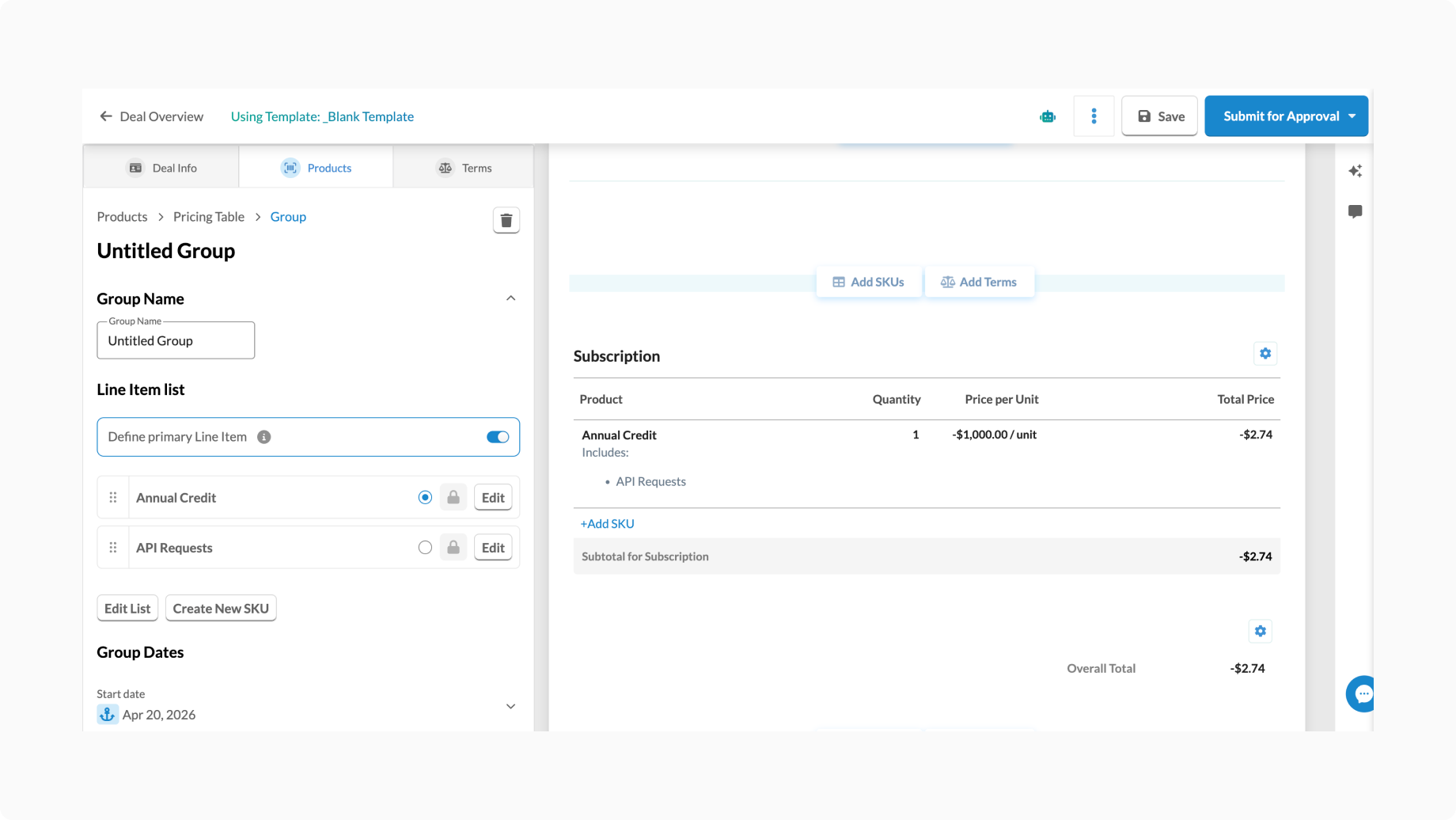
- define a primary line item within a group
- preserve group context in downstream CRM mappings
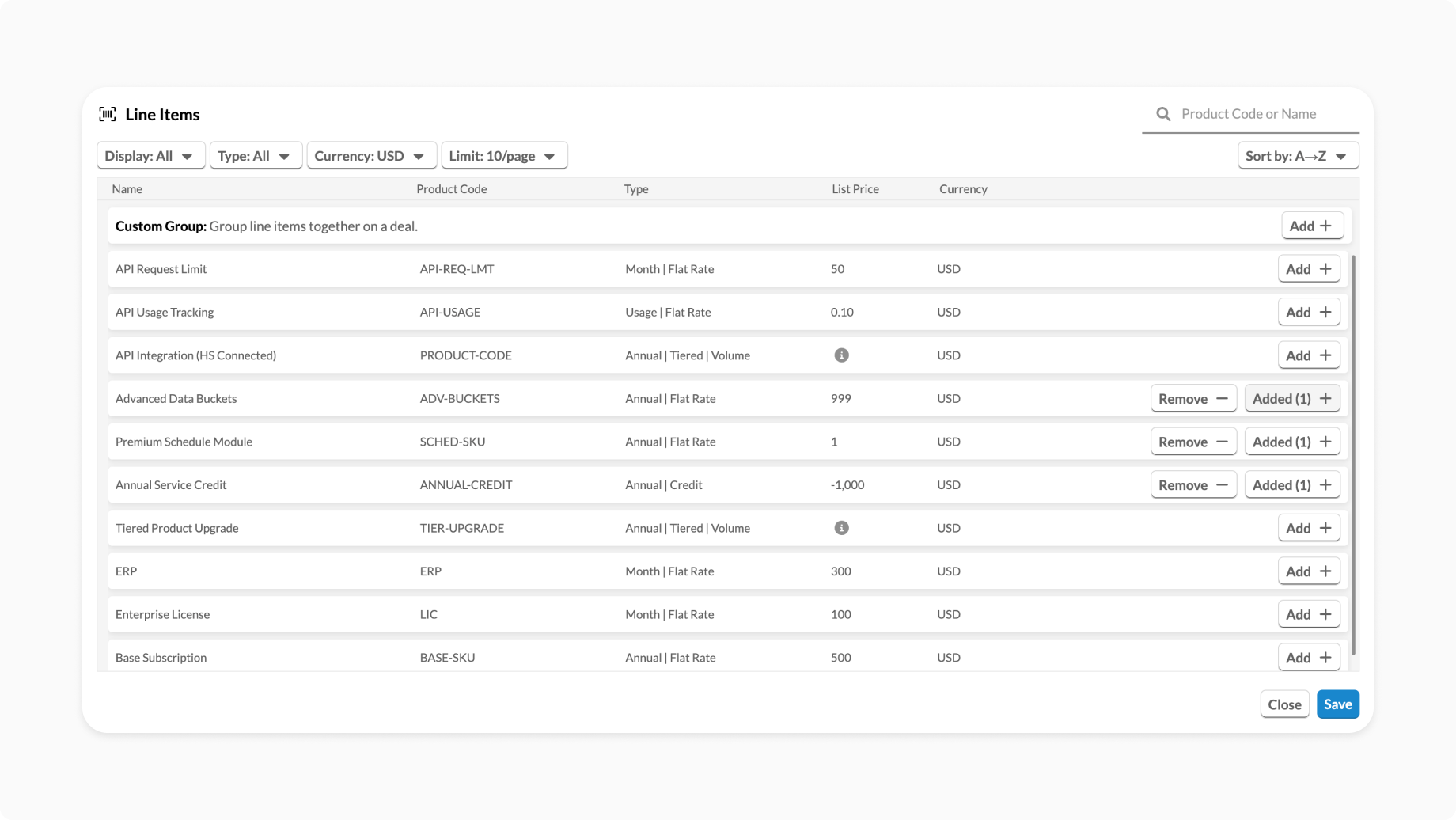
Find and add SKUs in the updated selection experience
In supported deal and template flows, the updated SKU selection experience replaces the older Add SKUs popup.
Use this experience when you want to:
- find SKUs faster in a large catalog
- narrow results using filters
- sort results before adding them
- add SKUs directly to the pricing table or into an existing group, depending on where you launch the SKU selector
Create a SKU Group
SKU Groups let you organize related line items together and manage them as a unit.
You can create a group in supported workflows by either:
- grouping items from the picker, or
- using supported drag-and-drop interactions in the pricing table
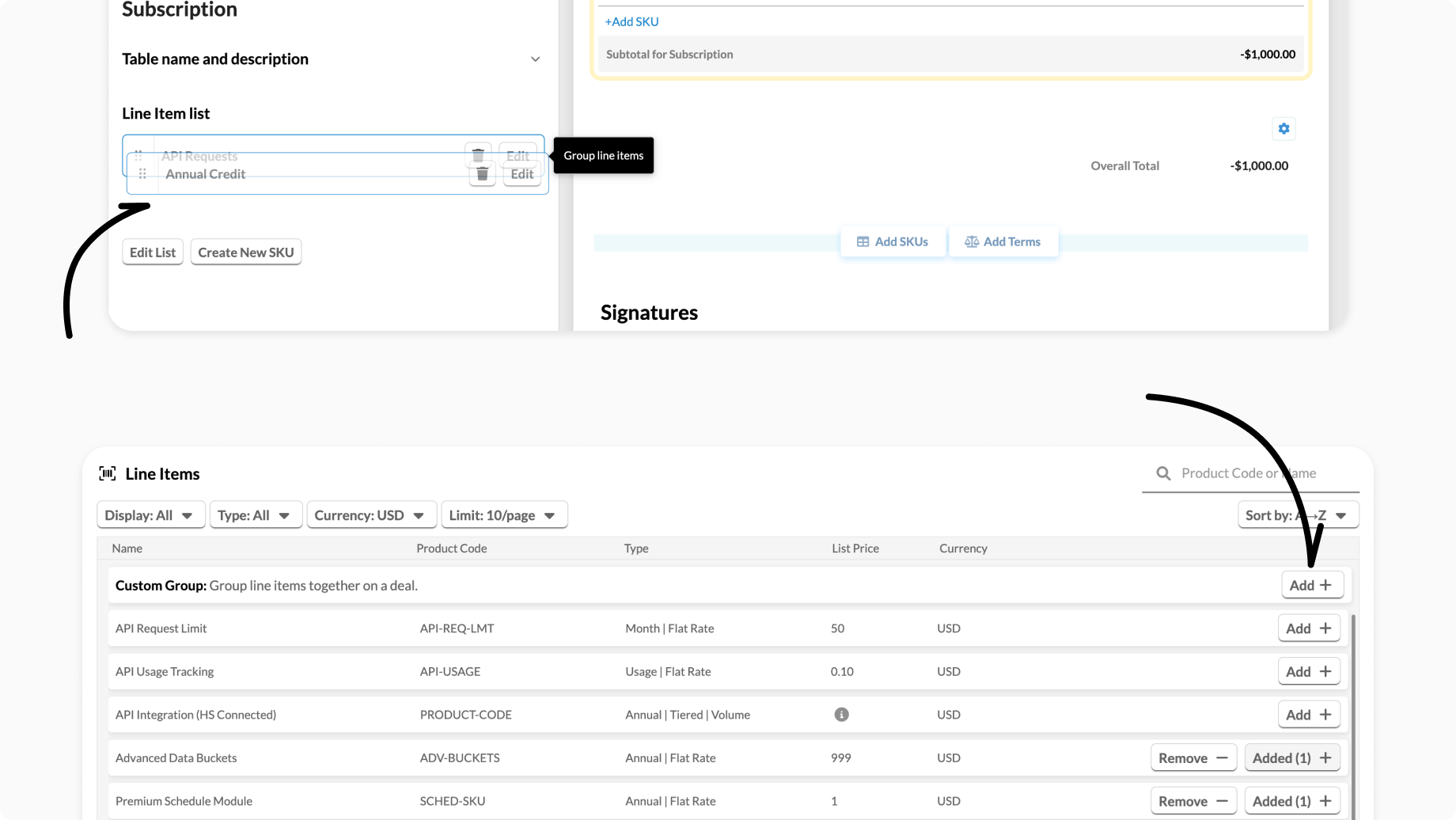
After the group is created, you can manage it from the deal editor.
Metered or usage-based SKUs are not supported in SKU Groups.
Manage a group
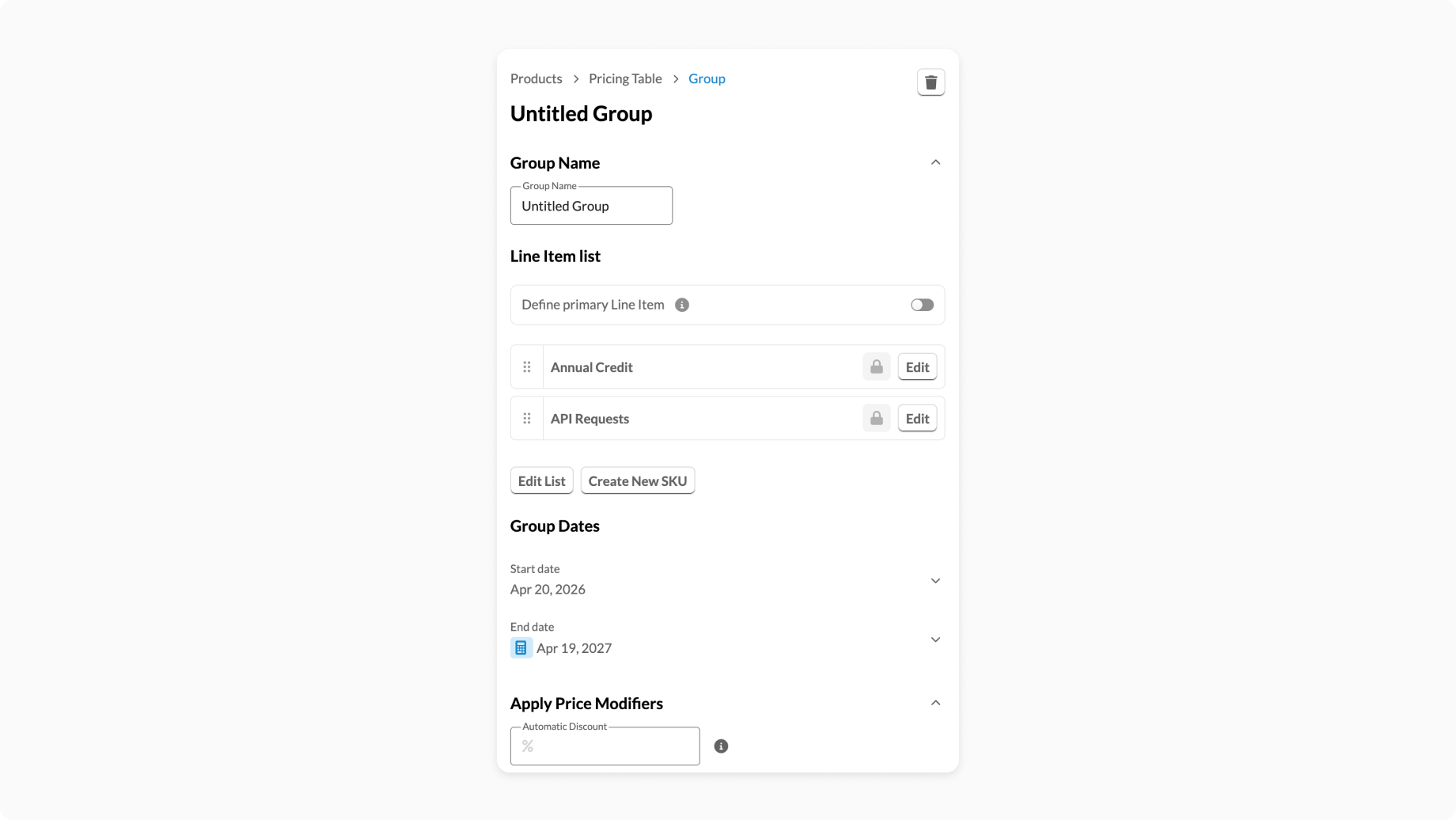
After creating a group, users can:
- rename the group
- reorder items in the group
- update dates for the group
- apply a group-level discount
- add more eligible SKUs to the group
- select one item as the primary line item
Group rules
A few important rules apply:
- a group must contain at least two SKUs
- group-level dates apply to all items in the group
- group-level discounts apply to all items in the group
- only one primary line item can exist per group
- a primary line item cannot be deleted while it is still primary
Primary line item behavior
A group can designate one line item as its primary line item.
This is useful when you want one item to represent the grouped package more clearly in the deal preview. When a primary line item is defined, the other SKUs in the group are shown as included details under that primary line item in the preview experience.
This means teams can keep one clear, customer-facing “headline” line item while still preserving the full grouped SKU context.
Example: with a primary line item defined
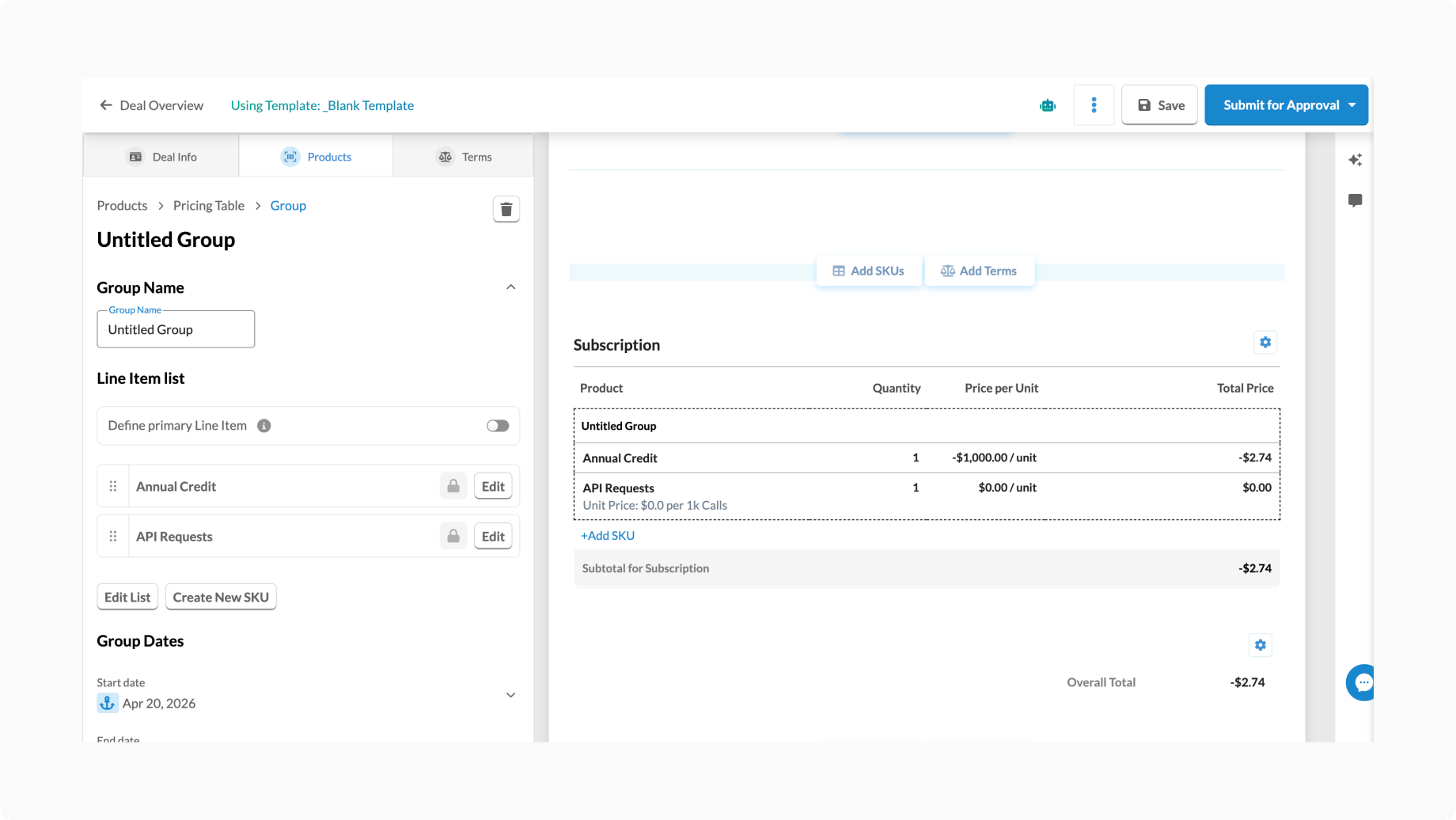
Example: without a primary line item defined
Deal preview behavior
When SKU Groups are enabled, grouped line items are shown more clearly in the deal preview.
This includes:
- clearer grouped structure
- grouped discount behavior
- support for primary line item presentation
Discount visibility in the preview still follows your existing workspace settings.
CRM mappings
When SKU Groups are enabled, admins can map grouped metadata into CRM fields.
Available grouped values include:
- Group ID
- Group Name
This is useful when your CRM does not natively model grouped line items, but your team still wants reporting or downstream context.
Things to know
- metered or usage-based SKUs are not supported in SKU Groups
- previously generated PDFs may need to be regenerated after grouped changes
- looking for a group you can build once and reuse across multiple templates and deals, instead of building it from scratch each time? See Predefined SKU Groups
Troubleshooting
I still see the older Add SKUs popup
Your workspace may not have the improved picker enabled yet.
I cannot create a group
Check that:
- your workspace has access to the feature
- you are in a supported editing flow
- the SKUs you are using are eligible for grouping
- the group has at least two items
I cannot remove a line item from a group
This usually means:
- the group would fall below the two-item minimum, or
- the line item is currently set as the primary item
My PDF does not match the current preview
If grouped items changed after the PDF was generated, generate a new PDF to reflect the latest state.