Predefined SKU Groups
This feature is currently being rolled out to selected workspaces. If you do not see it in your workspace, please contact support or email support@maxio.com.
If you've used SKU Groups and the Line Item Modal before, you already know the basic idea: bundle related SKUs together, manage them as one unit, and apply a group-level discount.
A Predefined SKU Group takes that same idea and makes it reusable. Instead of building a group from scratch inside one deal or template, you create it once in Settings, and then add it to as many templates and deals as you need. This keeps commonly-sold bundles consistent and cuts down on repeated setup work.
What's included
With this feature enabled, users can:
- create and manage Predefined SKU Groups from a dedicated Groups page in Settings
- add Predefined Groups to deals and templates directly from the line item picker, alongside individual SKUs
- see which groups a SKU belongs to from the SKU list
- lock specific line items within a group so they can't be removed individually once the group is on a deal
- keep templates up to date with changes to a group using Sync to Templates
Create a Predefined SKU Group
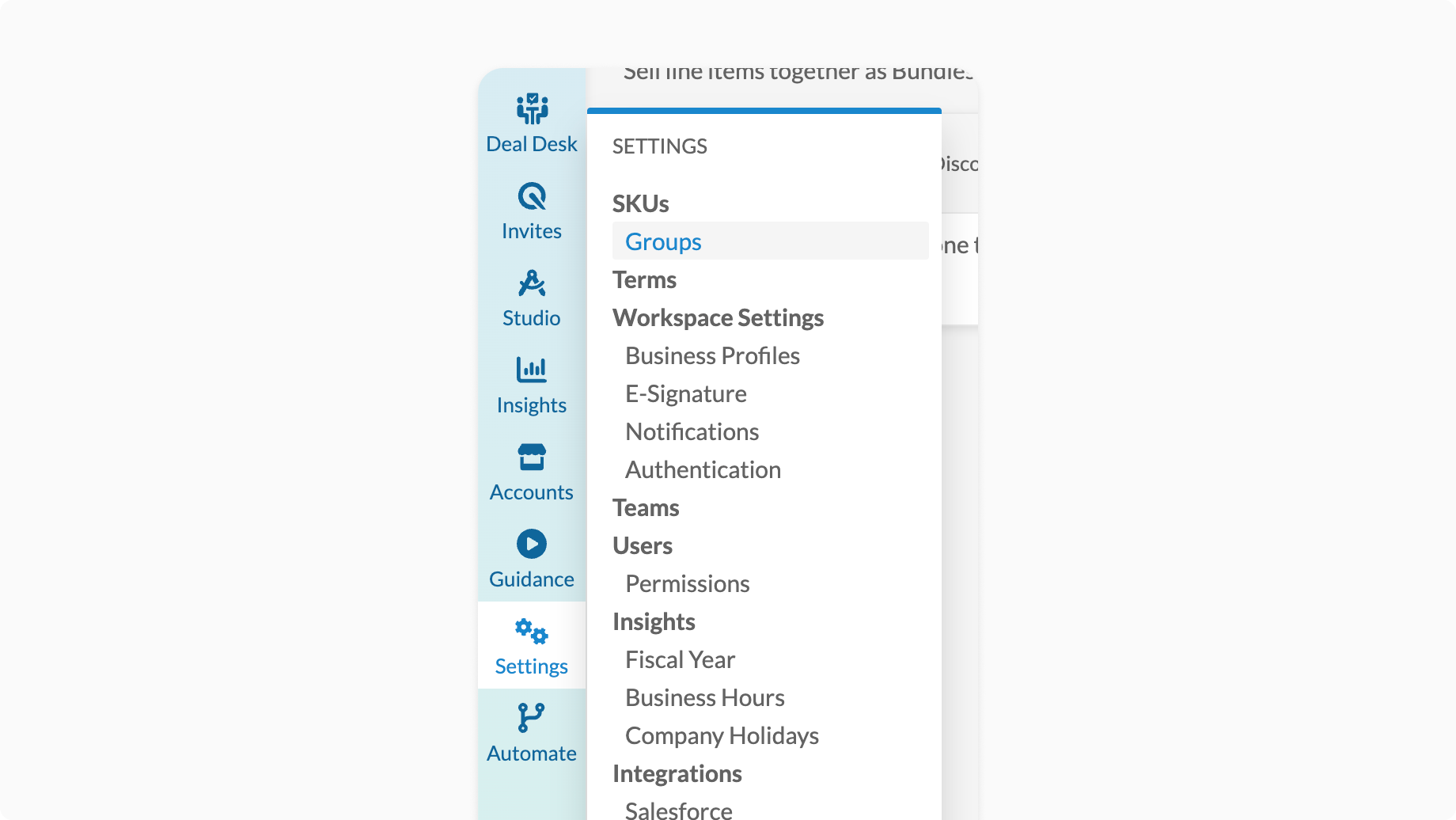
Predefined SKU Groups are managed from Settings > SKUs > Groups.
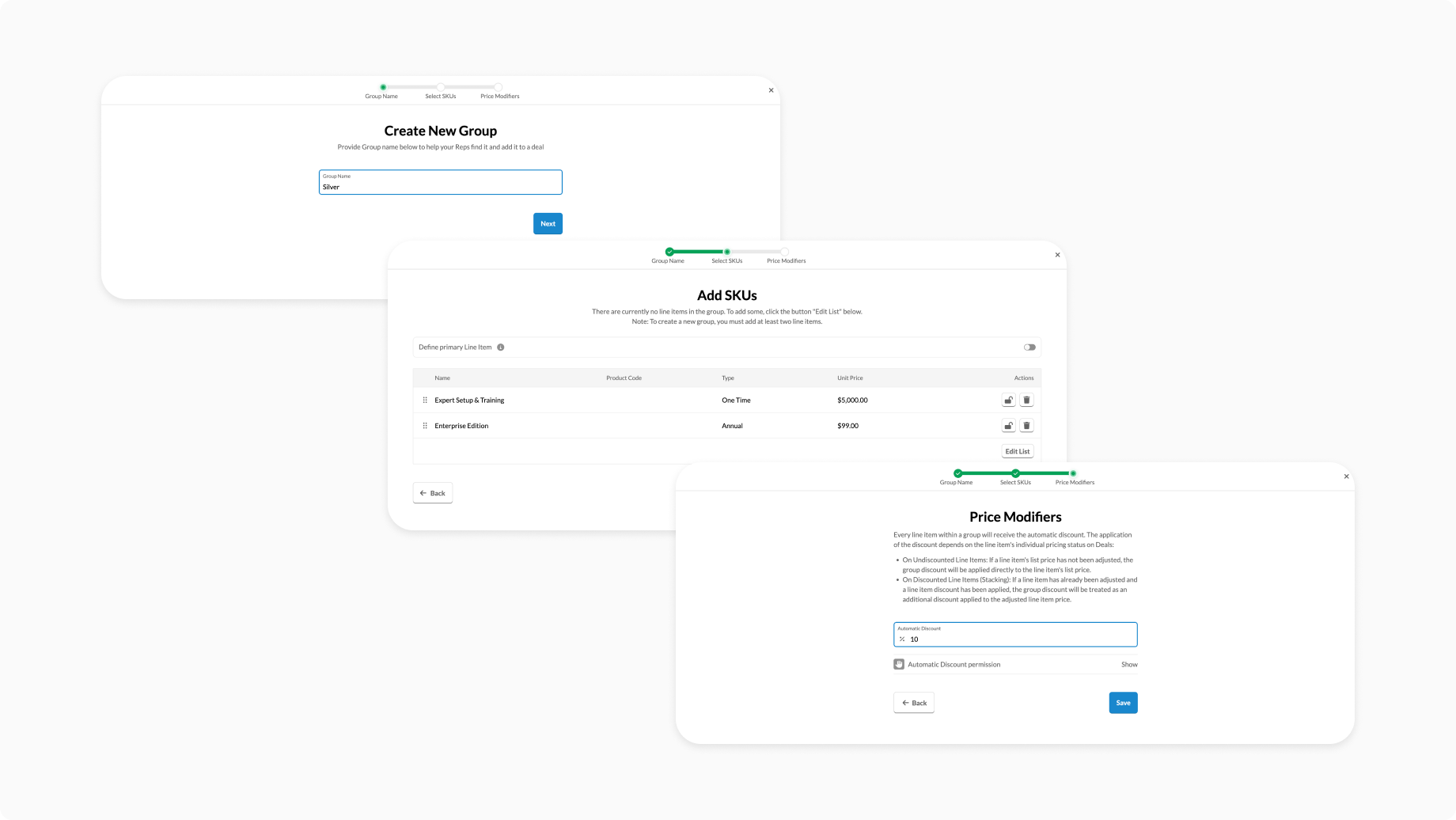
Creating a group walks you through three steps:
- Name the group.
- Select the SKUs that belong to it. You can optionally choose one SKU as the primary line item, and lock individual SKUs so they can't be removed once the group is added to a deal.
- Set an automatic discount. This discount applies to every SKU in the group whenever the group is used.
Creating, editing, and deleting Predefined SKU Groups is limited to the same roles that already manage SKUs today (admins, deal desk managers, and finance).
Manage your groups
From the Groups page, you can:
- search for a group by name
- edit a group's name, SKUs, primary line item, locks, or discount
- delete a group
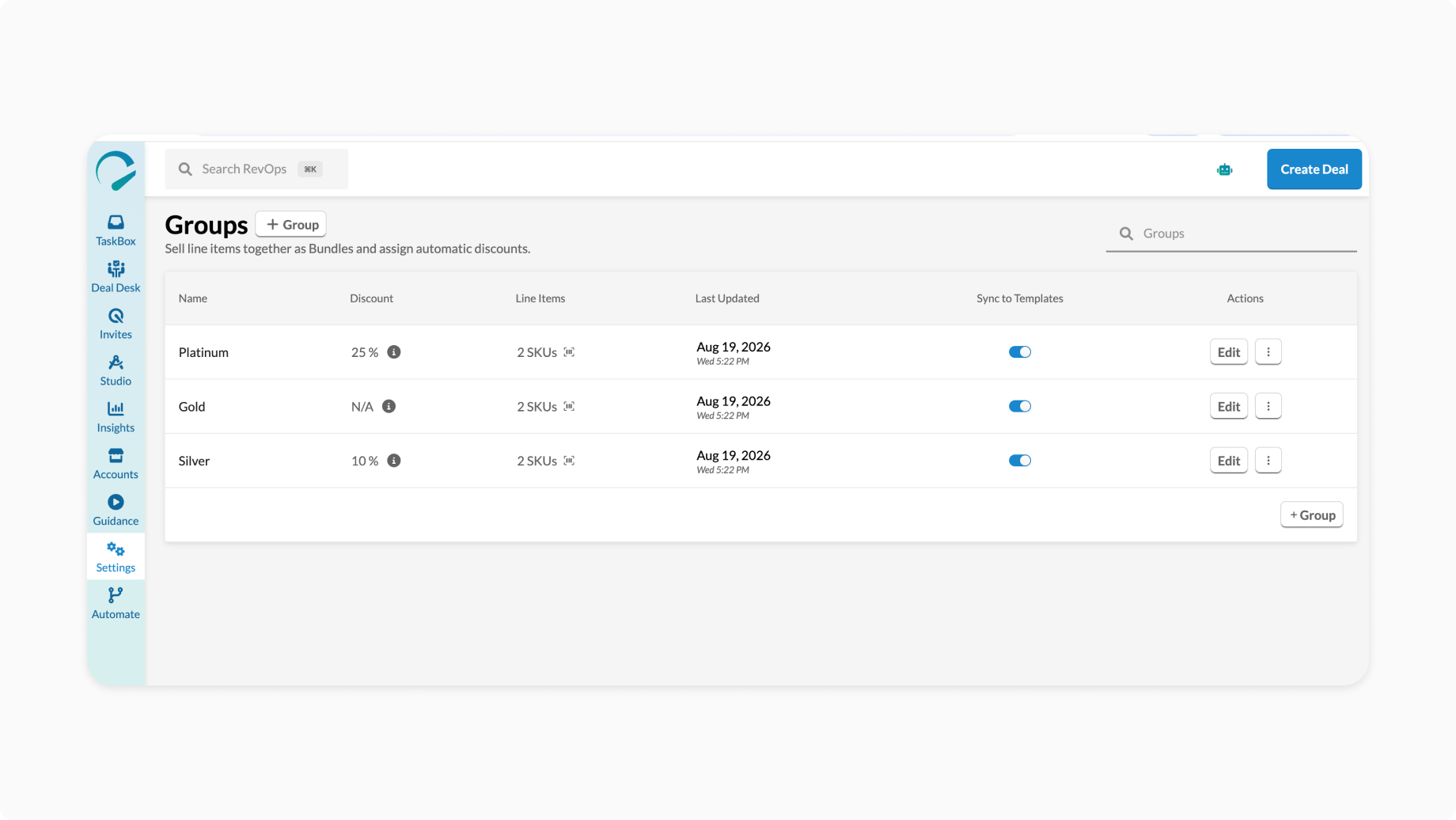
Any changes you save here apply the next time the group is added to a deal or template — see Keep templates in sync below for the one exception.
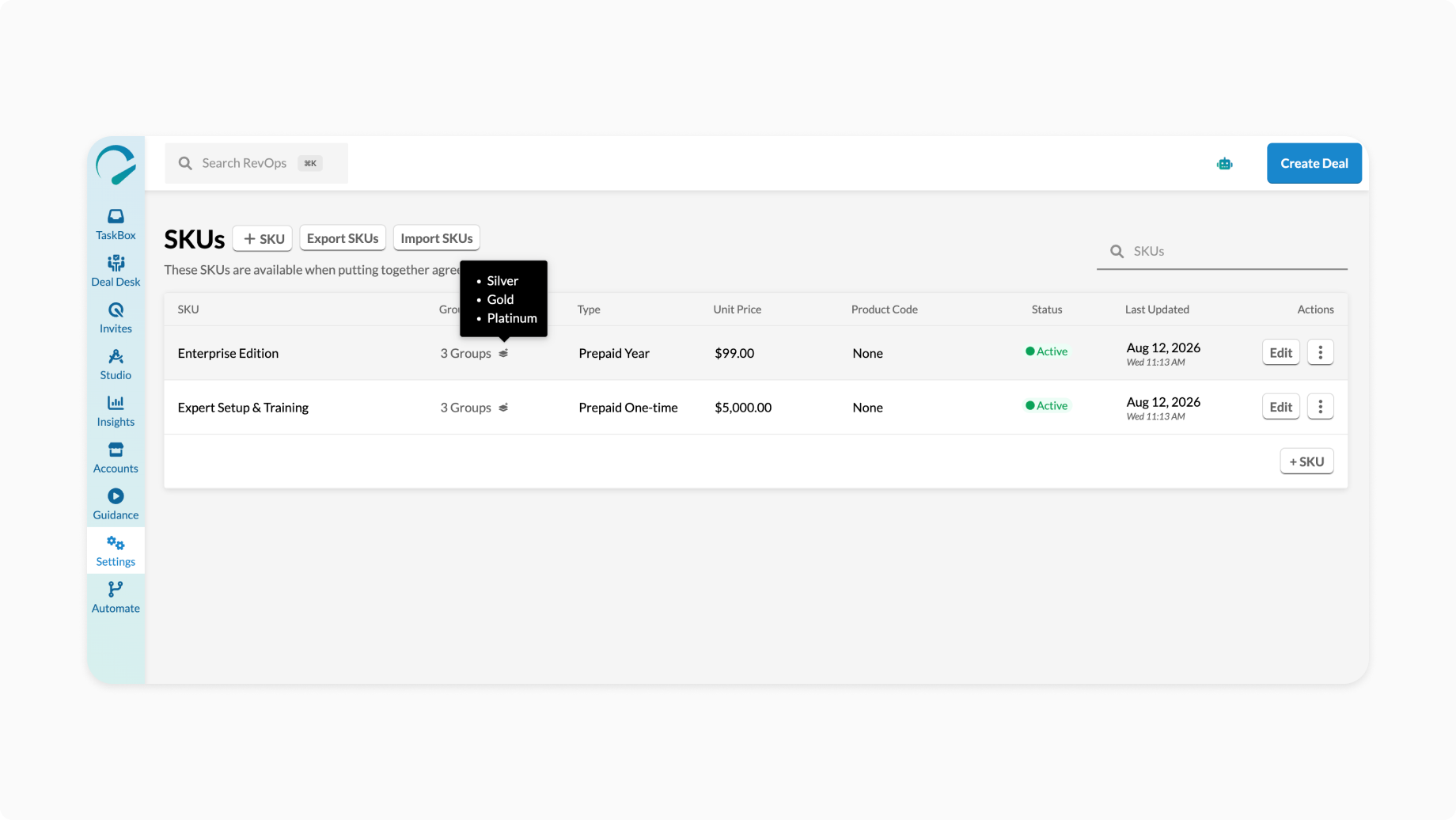
You can also see which Predefined Groups a SKU belongs to directly from the SKU list. If a SKU belongs to one group, its name is shown. If it belongs to more than one, you'll see a count with a tooltip listing every group.
Add a Predefined Group to a deal or template
Predefined Groups show up as their own rows in the line item picker, right alongside individual SKUs and your existing Custom Groups, in both Deal Studio and Deal Editor.
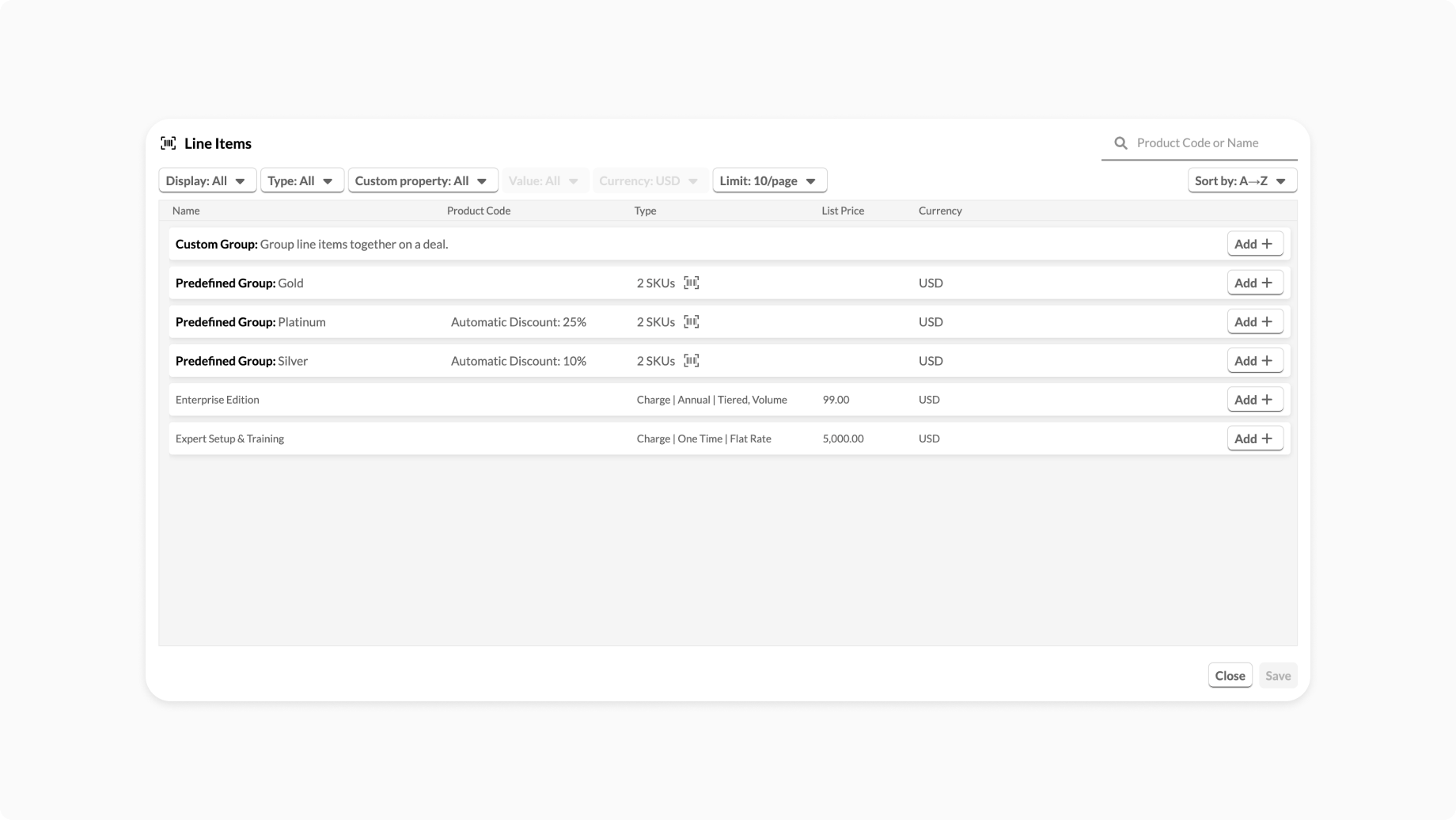
When you add a Predefined Group to a deal or template, it copies that group's current name, SKUs, and discount onto the deal or template at that moment. From there, it behaves just like a Custom Group — same group-level dates and discounts, same primary line item behavior, same deal preview rendering.
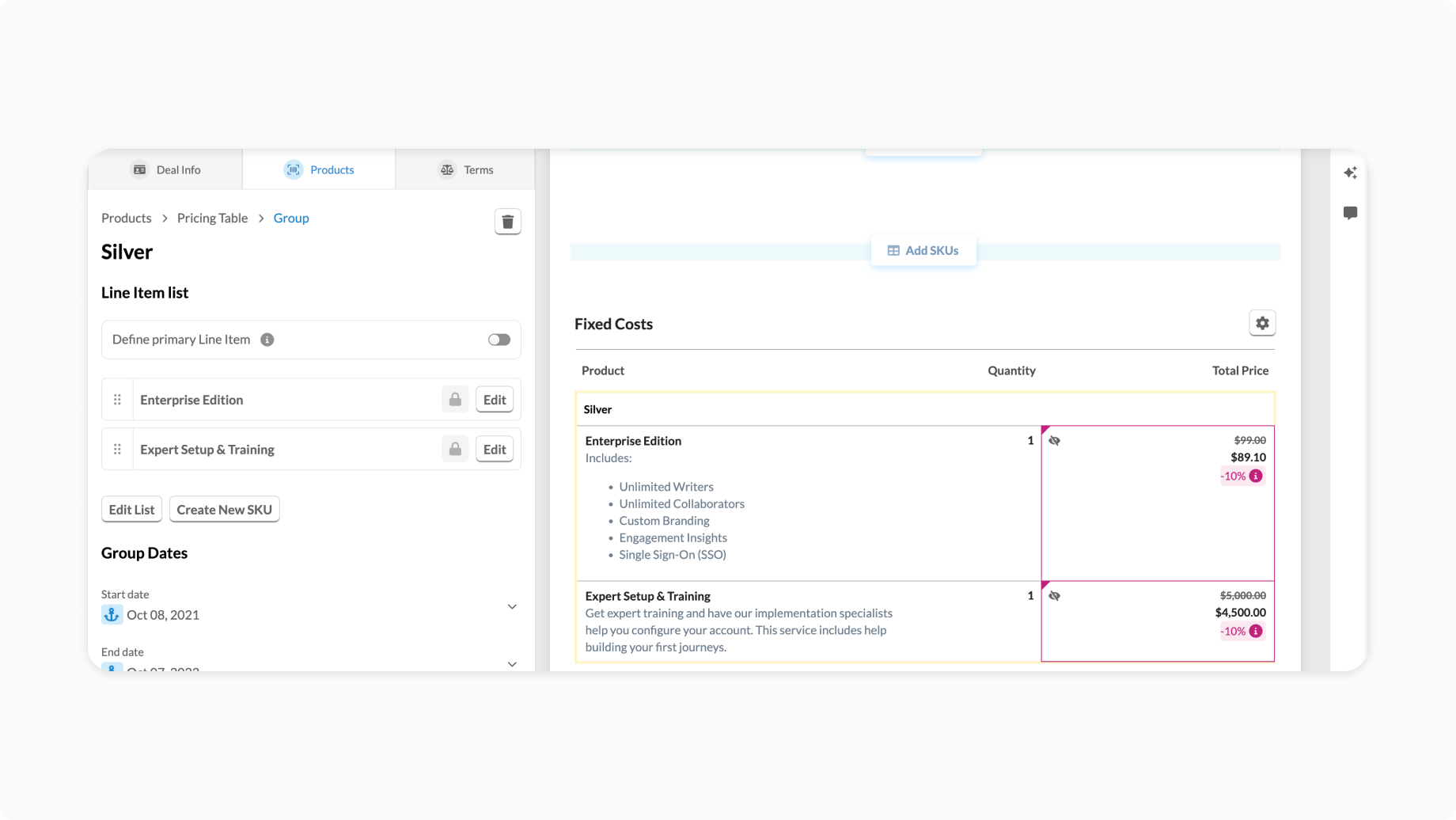
Adding a Predefined Group to a deal or template is a one-time copy, not a live connection back to the group in Settings. Editing the group afterward does not change any deal or template that already has it — with one optional exception, described next.
Keep templates in sync (optional)
Every Predefined Group has a Sync to Templates toggle. It's off by default.
When it's on, saving changes to the group — a new name, a different discount, added or removed SKUs, a new primary line item — automatically pushes those changes into every template that already uses this group and also has sync turned on for that specific instance. You don't need to open each template and repeat the change by hand.
What sync does:
- Updates a template's copy of the group to match the group's latest name, discount, SKUs, and primary line item
- Happens automatically whenever you save the group — there's no separate "push" step
What sync does not do:
- It never touches a deal. Deals are a permanent snapshot from the moment the group was added, whether or not sync is on. If a deal already exists with the old version of a group, it keeps that old version.
- It only updates a template if that template's own copy also has sync turned on. A template can opt out and keep its own independent copy of the group.
- It doesn't change anything template-specific, like dates or per-field editing permissions on that template.
For example: say a Predefined Group has a 10% discount, and Sync to Templates is on. You raise the discount to 15% and save. Every template with sync on for that group now shows 15%. A deal that was created last week using the old 10% version of the group keeps 10% — updating the group afterward doesn't reach back into deals that already exist.
To stop a specific template from receiving updates, turn off sync for that template's copy of the group. This doesn't affect any other template still using the group.
Locking line items in a group
When creating or editing a Predefined Group, you can lock individual SKUs.
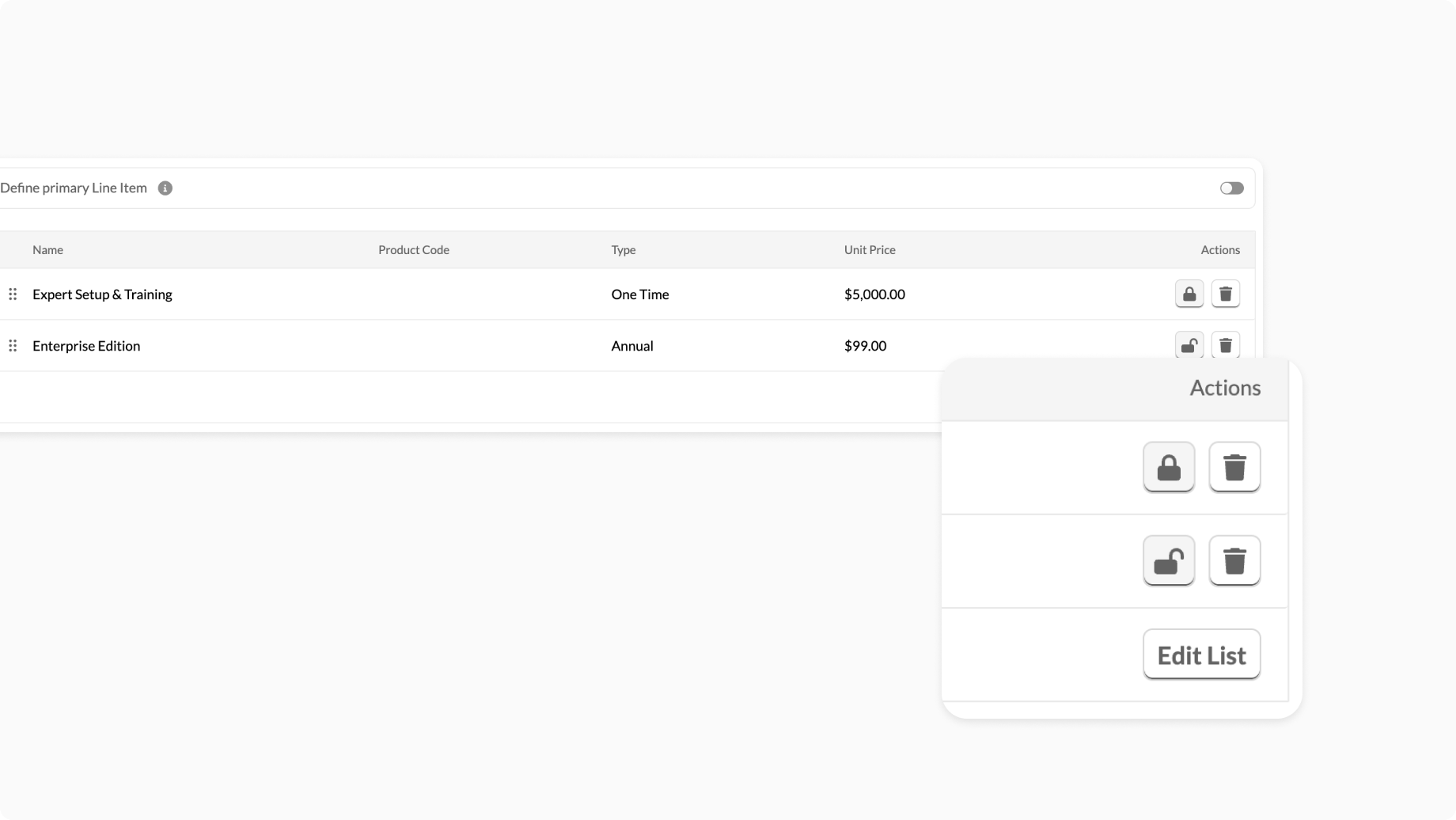
- A locked SKU can't be removed on its own once the group is added to a deal — the entire group has to be removed instead.
- An unlocked SKU can be removed individually without affecting the rest of the group.
- If a primary line item is set, it's always locked and can't be unlocked while it remains primary.
Permissions
- Managing the group itself (create, edit, delete) is limited to the same roles that manage SKUs today.
- Overriding a group once it's on a specific deal or template (its discount, its dates) follows the same per-field permissions you're already used to from Custom Groups.
Things to know
- A SKU can belong to more than one Predefined Group at the same time.
- Deleting or deactivating a SKU that's still used in one or more Predefined Groups doesn't automatically remove it from those groups. You'll see a warning listing the affected groups, but you'll need to update each one yourself.
- Metered or usage-based SKUs are not supported in SKU Groups, including Predefined SKU Groups.
Troubleshooting
I don't see Groups in Settings
Your workspace may not have this feature enabled yet. Contact support to request access.
My changes to a group aren't showing up on a deal or template
This is expected for deals — a deal keeps the version of the group it had when it was added, and never updates automatically. See Keep templates in sync.
If this is happening on a template and you expected it to update, check that Sync to Templates is turned on both for the group and for that specific template.
I can't remove one line item from a Predefined Group on my deal
Check whether that line item is locked, or is the group's primary line item. Locked and primary line items can only be removed by removing the whole group.
I deleted a SKU, but it still shows up in a Predefined Group
This is expected — deleting or deactivating a SKU doesn't automatically clean it out of any groups that reference it. Open the group and remove it manually.