How SKU synchronization works
SKU synchronization keeps your SKU data consistent across your deals by automatically applying updates to templates where the SKU is used.
The SKU Library acts as the source of truth, meaning changes made there will update all synchronized instances of that SKU.
There are 2 ways of managing synchronization:
Manage synchronization in SKU Library
When you update a SKU in the SKU Library and click Save, those changes automatically apply to all templates where:
- The SKU is included
- Synchronization is enabled
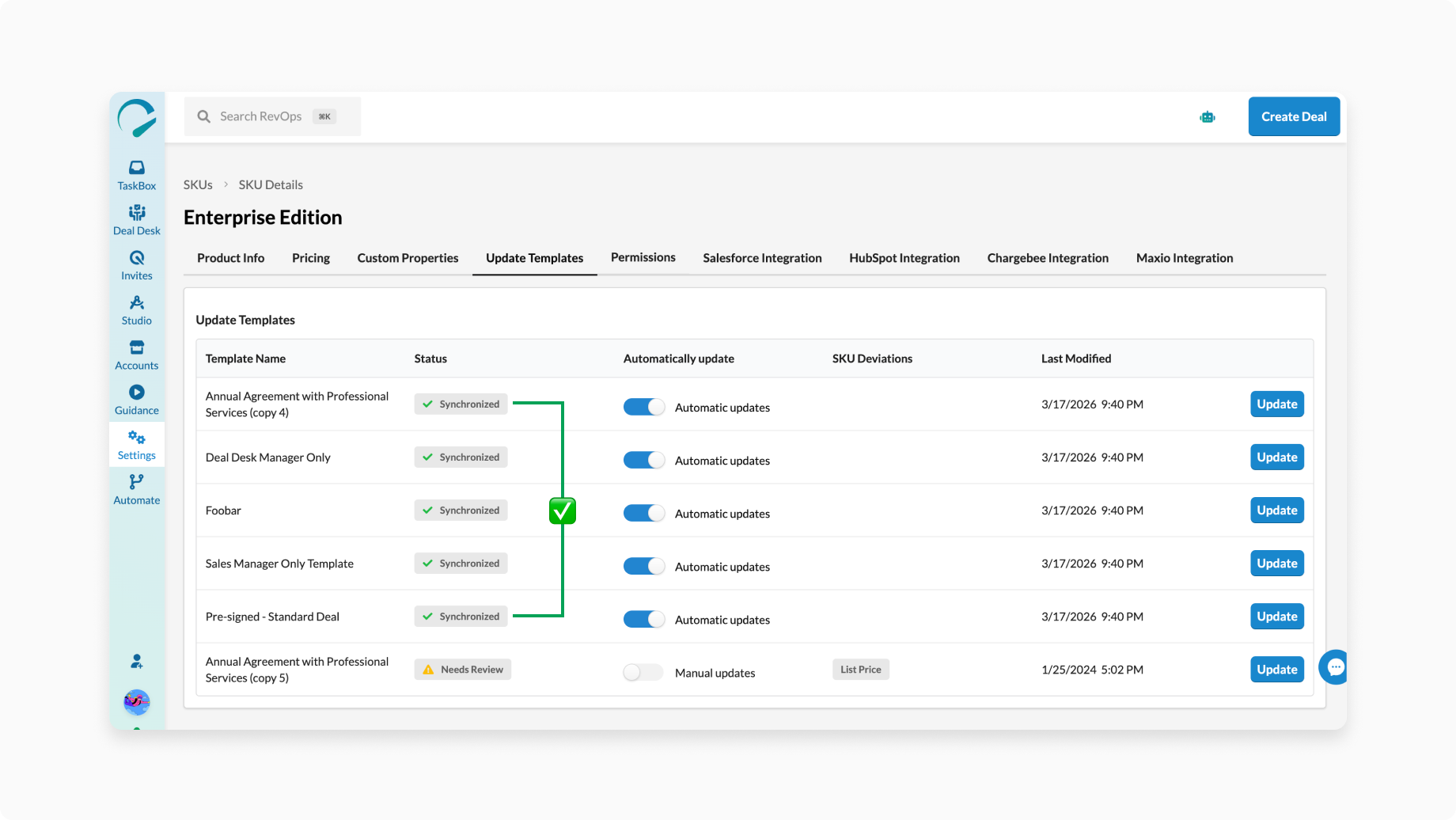
This ensures pricing, configuration, and other SKU details stay consistent across your deals.
View and manage synchronization
To see where a SKU is used and how it’s synced:
- Go to Settings > SKUs
- Select a SKU
- Open the Update Templates tab
Here, you can:
- View all templates that include the SKU
- See whether each template is synchronized
- Control whether updates are applied automatically
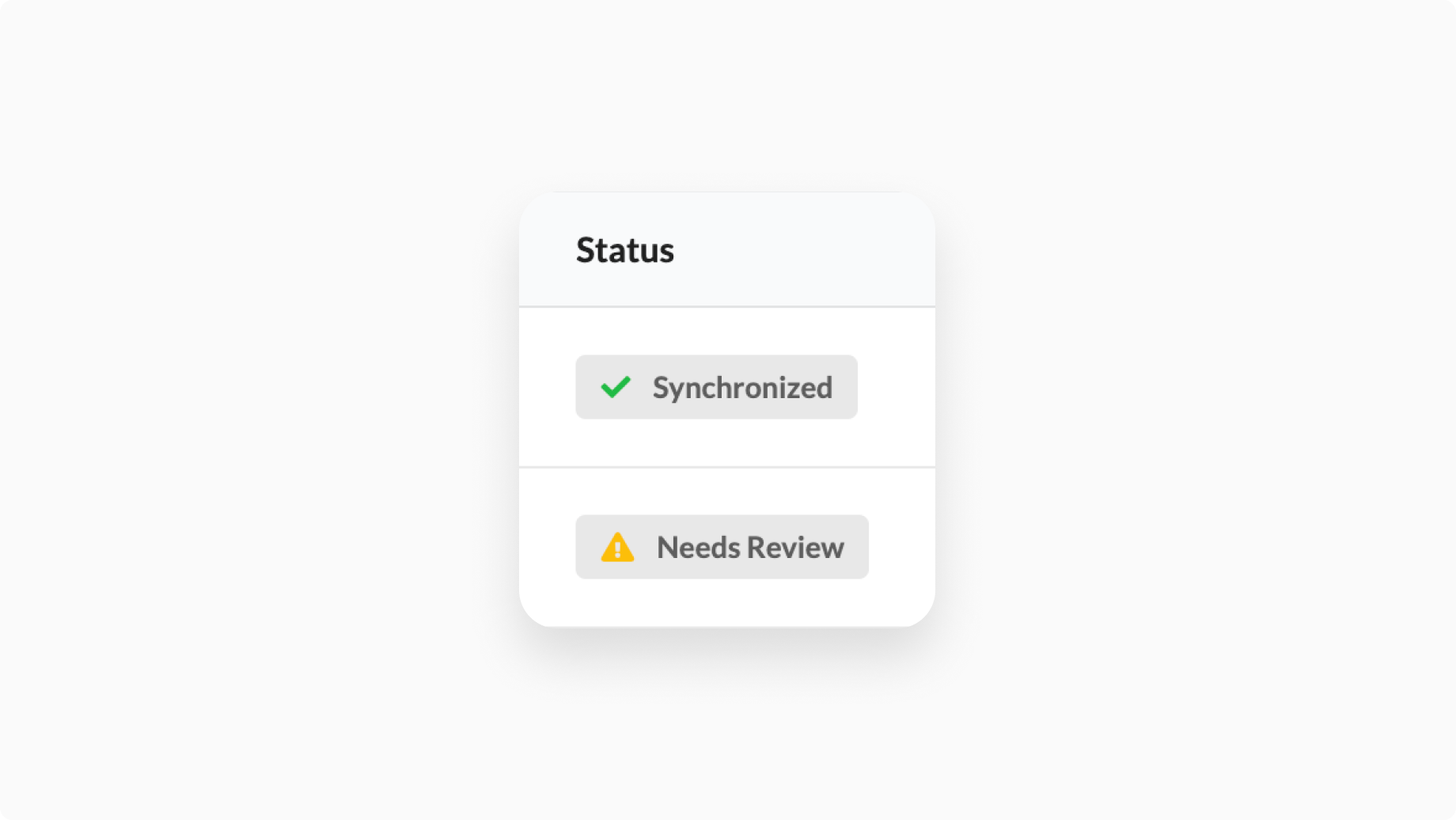
Sync statuses
- Synchronized: The template SKU data matches the SKU Library data
- Needs Review: The template SKU data has differences from the SKU Library data
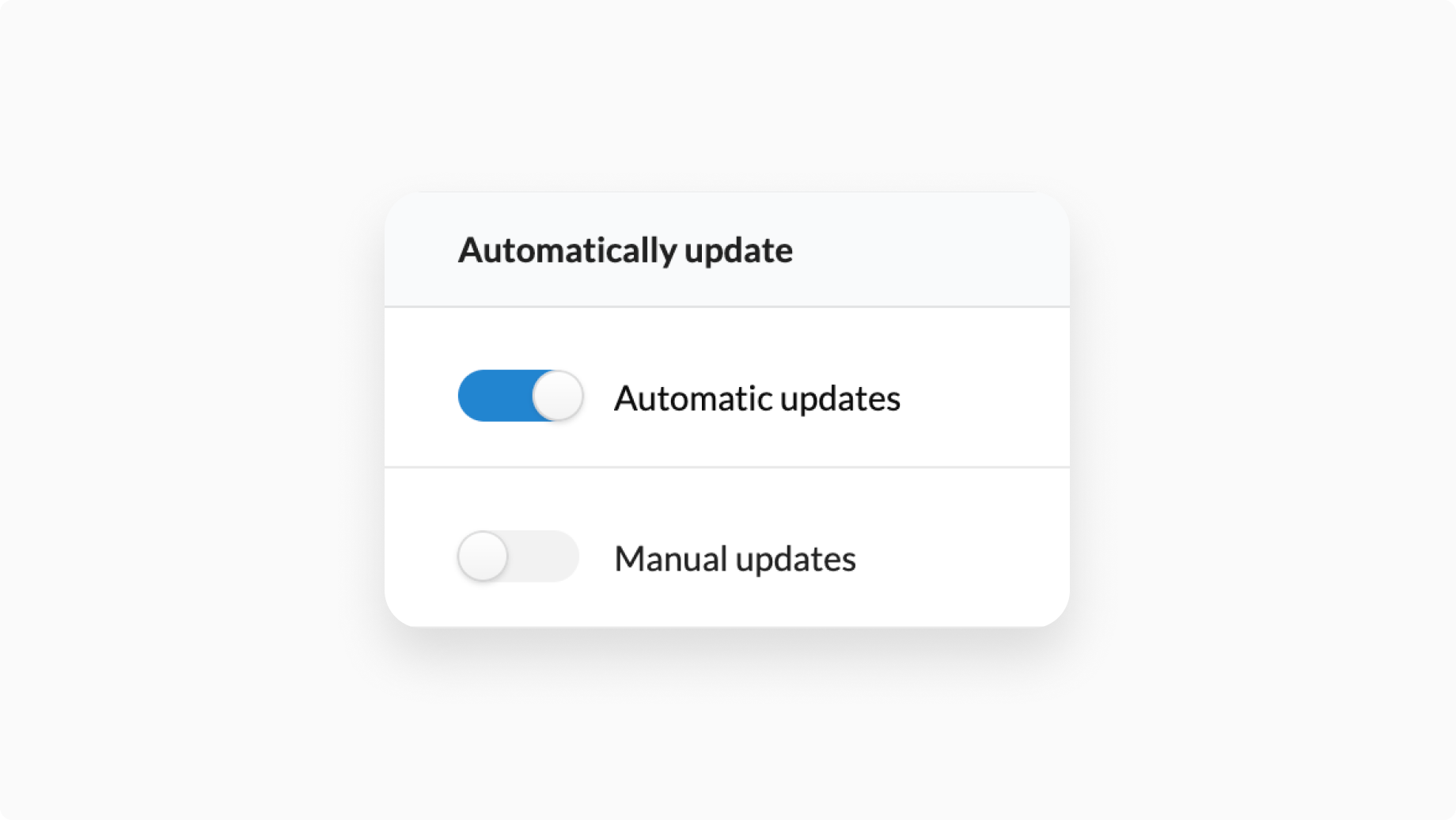
- Automatic updates enabled: Changes apply automatically
- Automatic updates disabled: Updates must be applied manually
Automatic vs manual updates
You can control how updates are applied per template.
Automatic updates (recommended)
When enabled, any changes made in the SKU Library automatically update the SKU across all applicable templates.
Use this for standard SKUs where consistency is important.
Manual updates
When automatic updates are disabled:
- Changes in the SKU Library won’t apply automatically
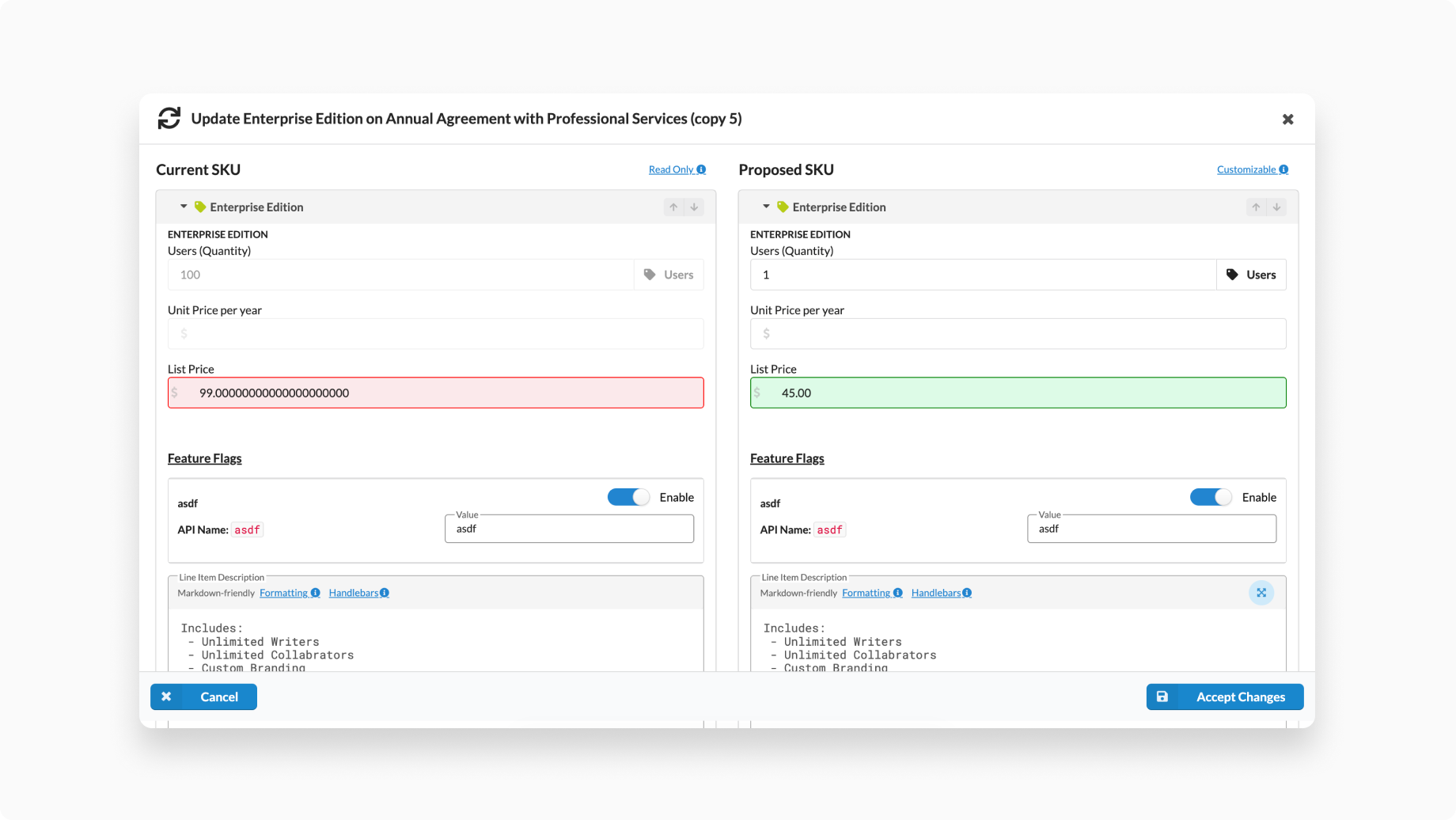
- You can review differences before applying updates
To update manually:
- Click Update next to a template
- Review the differences
- Click Accept changes to apply them
Use this for templates with custom pricing or experimental configurations.
Manage synchronization in the template editor
You can also control synchronization directly in the Template Editor.
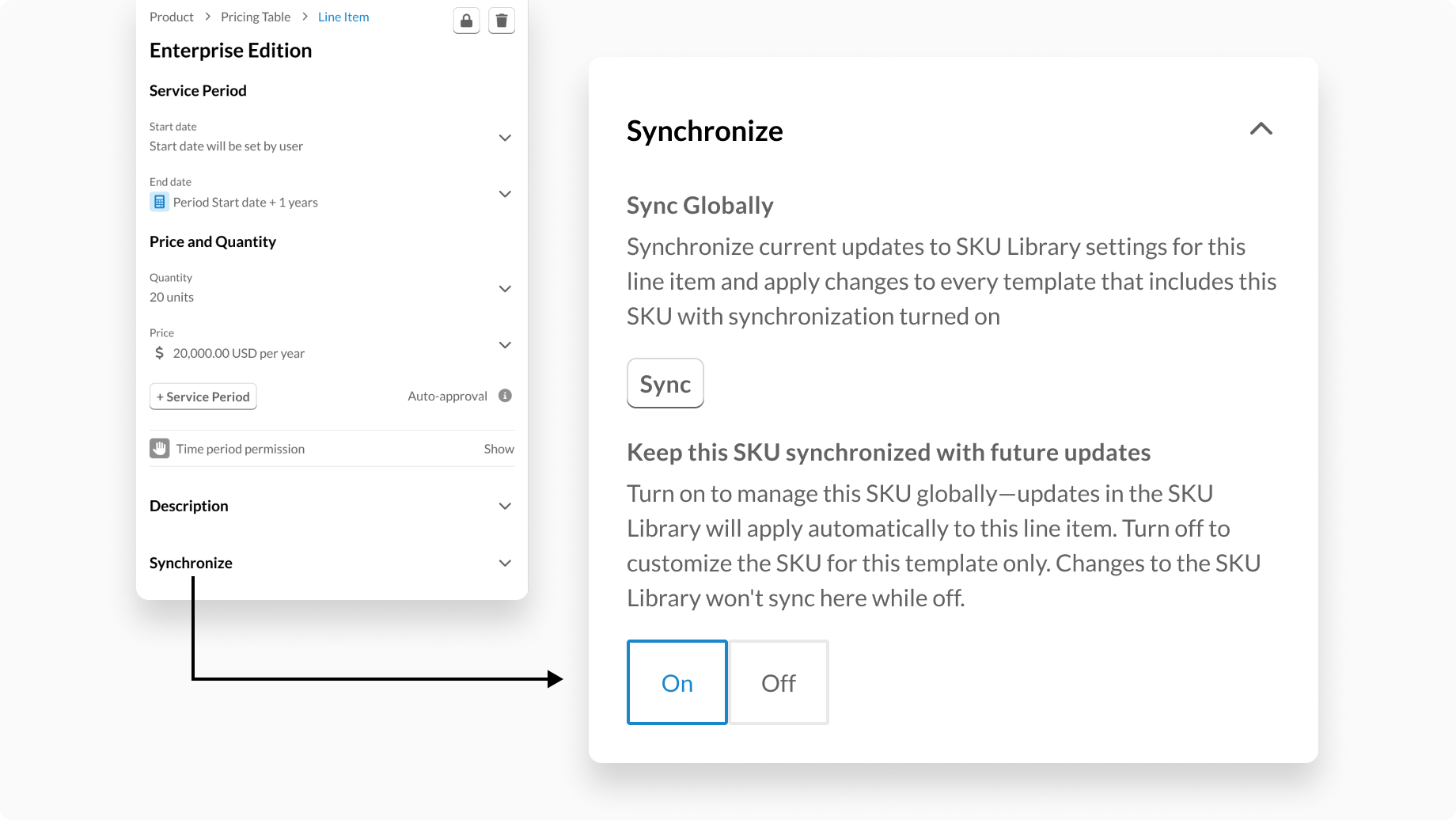
Each SKU includes a setting to:
- Enable synchronization (ON) (receive updates)
- Disable synchronization (OFF) (allow custom values)
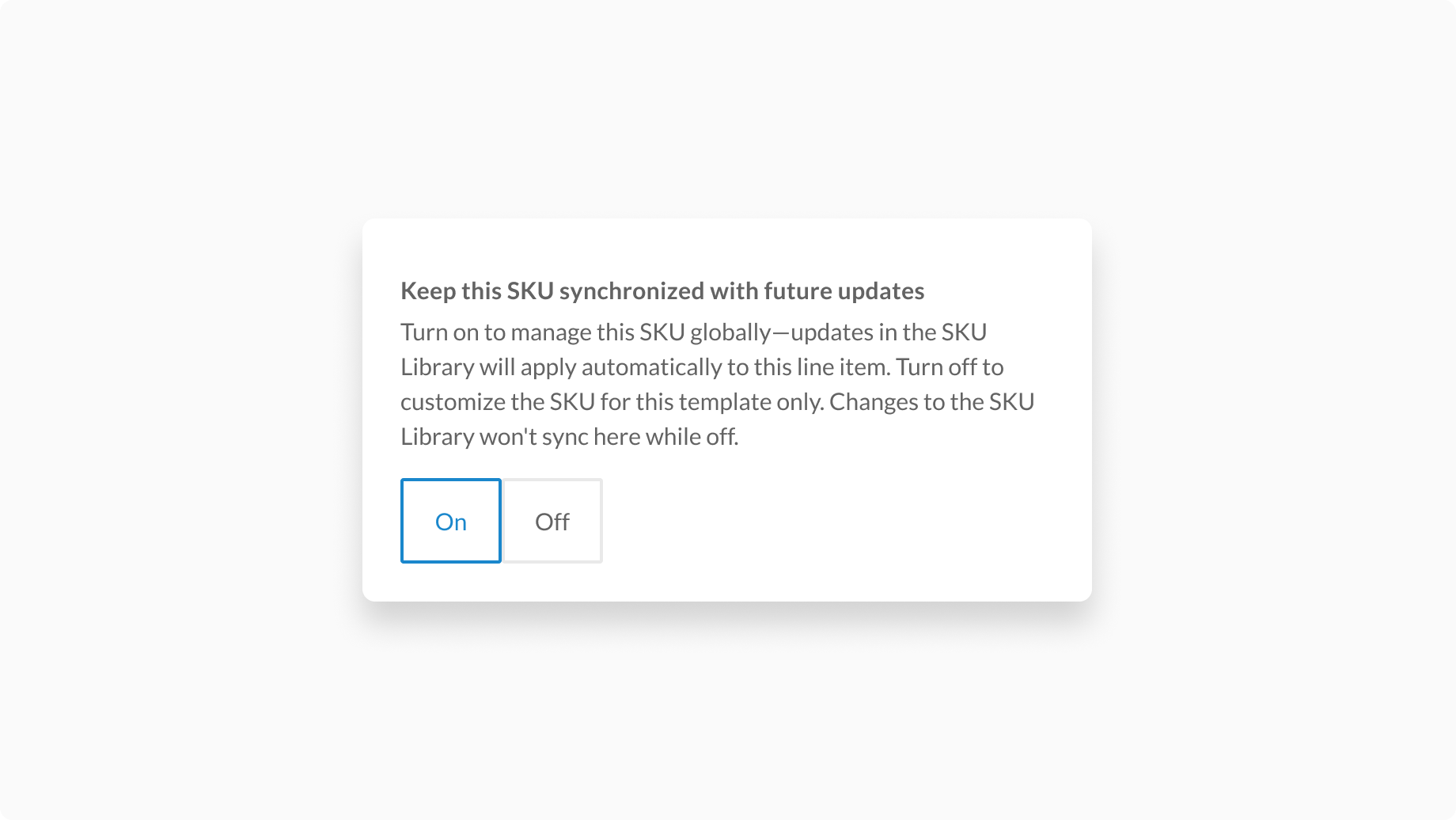
Changes made here will reflect in the SKU Library after saving the template.
Sync across workspace
The Template Editor also includes a Sync Globally section in Synchronize drawer.
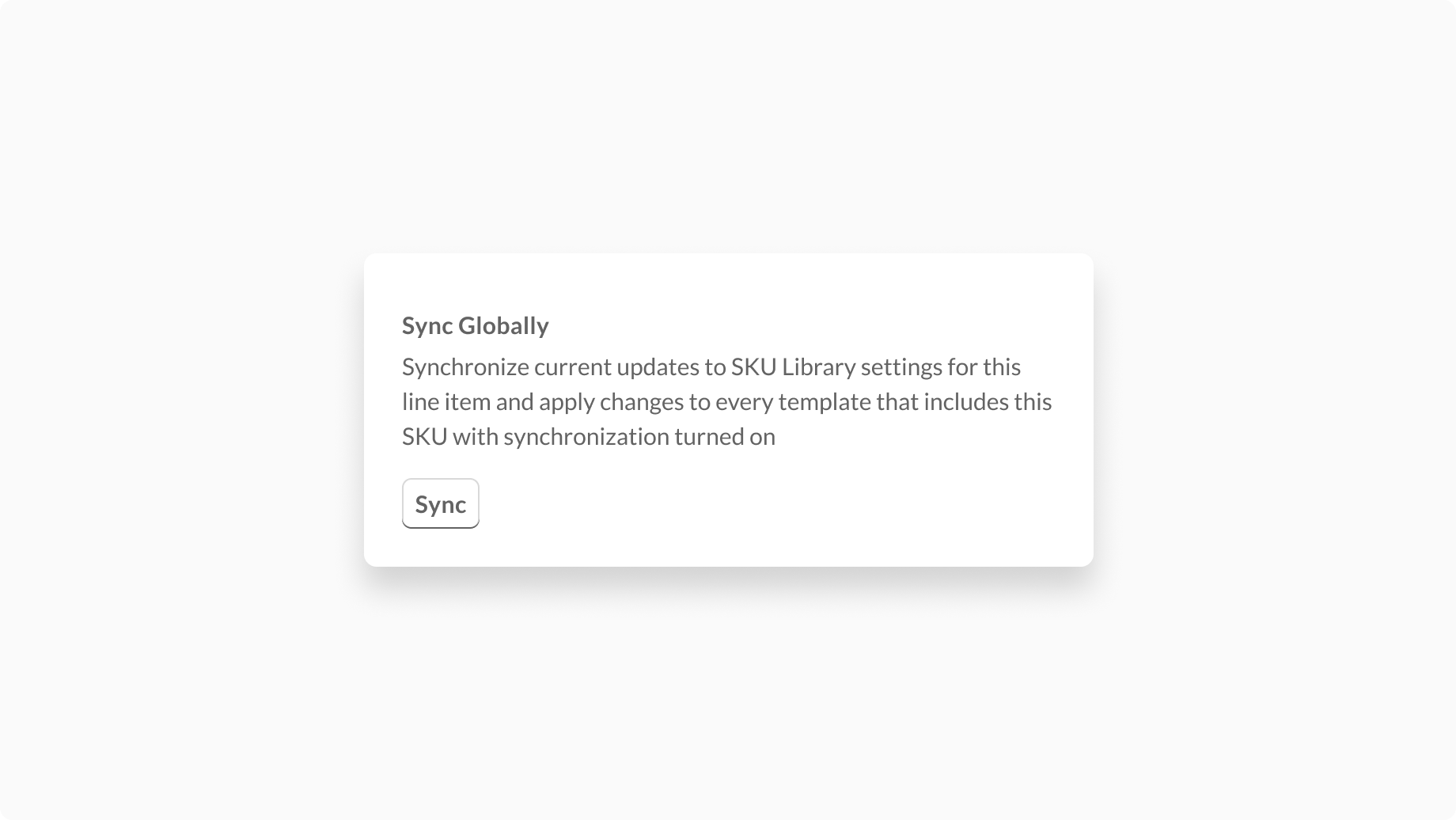
This allows you to:
- Select specific SKU fields
- Apply those changes across all templates
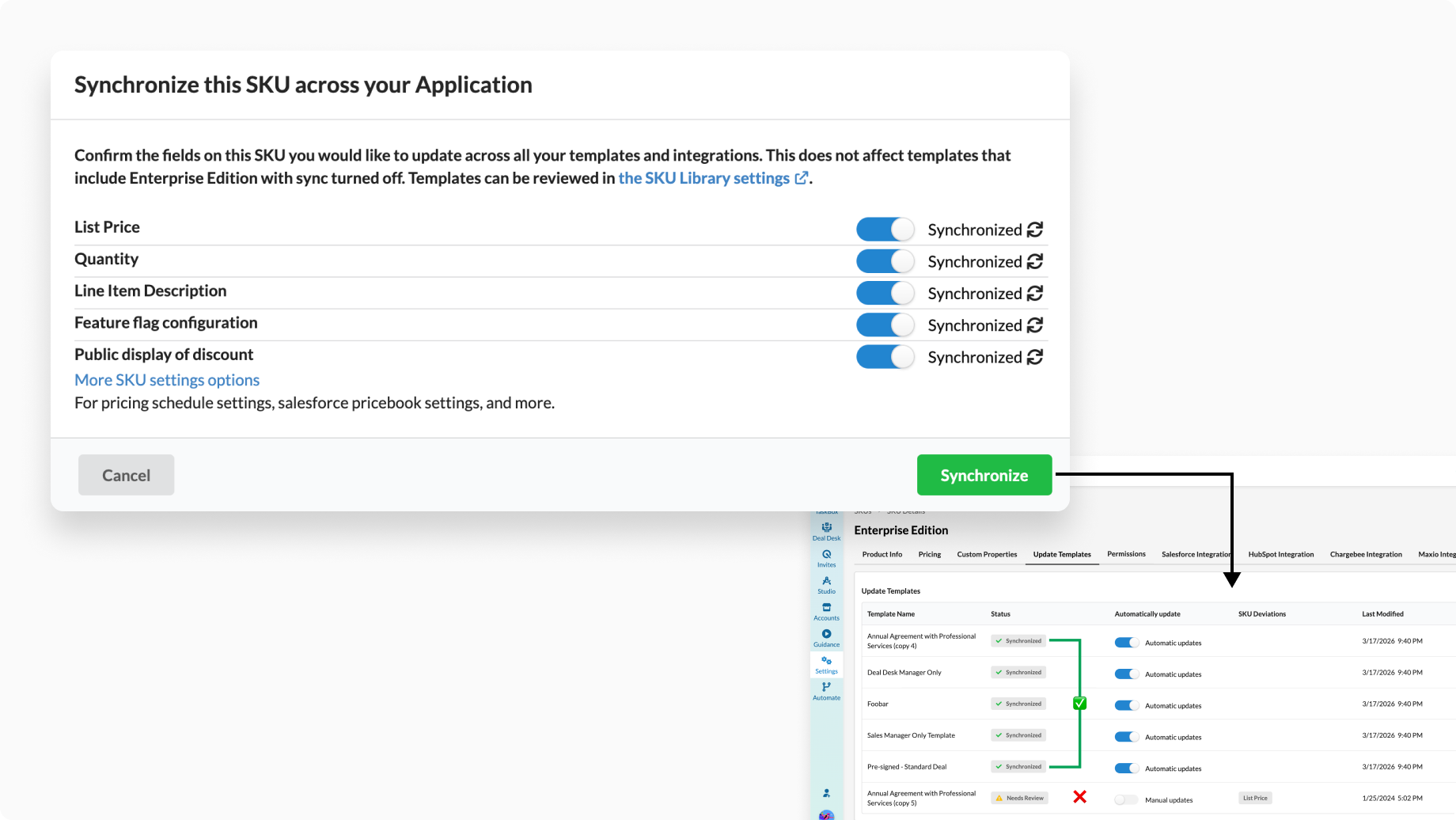
Only templates with synchronization enabled will receive these updates.
This action is manual and applies only when triggered.
Source of truth
The SKU Library is the source of truth.
- Changes made in the SKU Library always propagate to synchronized templates
- Changes made in templates do not automatically update the SKU Library or other templates
While you can push updates from a template using Sync globally, this is a manual action and should not replace managing SKUs from the library.
When to use synchronization
Use synchronization to:
- Keep pricing consistent across templates
- Roll out global SKU updates quickly
- Reduce manual updates and errors
Disable synchronization when:
- You need template-specific pricing
- You’re testing or experimenting with changes