Importing OpportunityLineItems
Importing OpportunityLineItems helps simplify your sales process and keeps your sales data centralized in your CRM.
This is an Early Access feature. Have any feedback or find an issue? Let us know at support@revops.io.
Set up Salesforce
Add data mappings
To get started, create the following custom fields on these standard objects—if you don’t already have similar fields:
-
-
Unit Pricing Schedule – Use either a Text or Picklist data type. The Picklist type is more strict. A possible API name could be
OpportunityLineItem.PricingSchedule__c.If you choose Picklist, make sure it includes the following options:
daydaysmonthmonthsyearyearsone-time
We recommend using the Text type for more flexibility.
-
Set up RevOps
Configure import settings
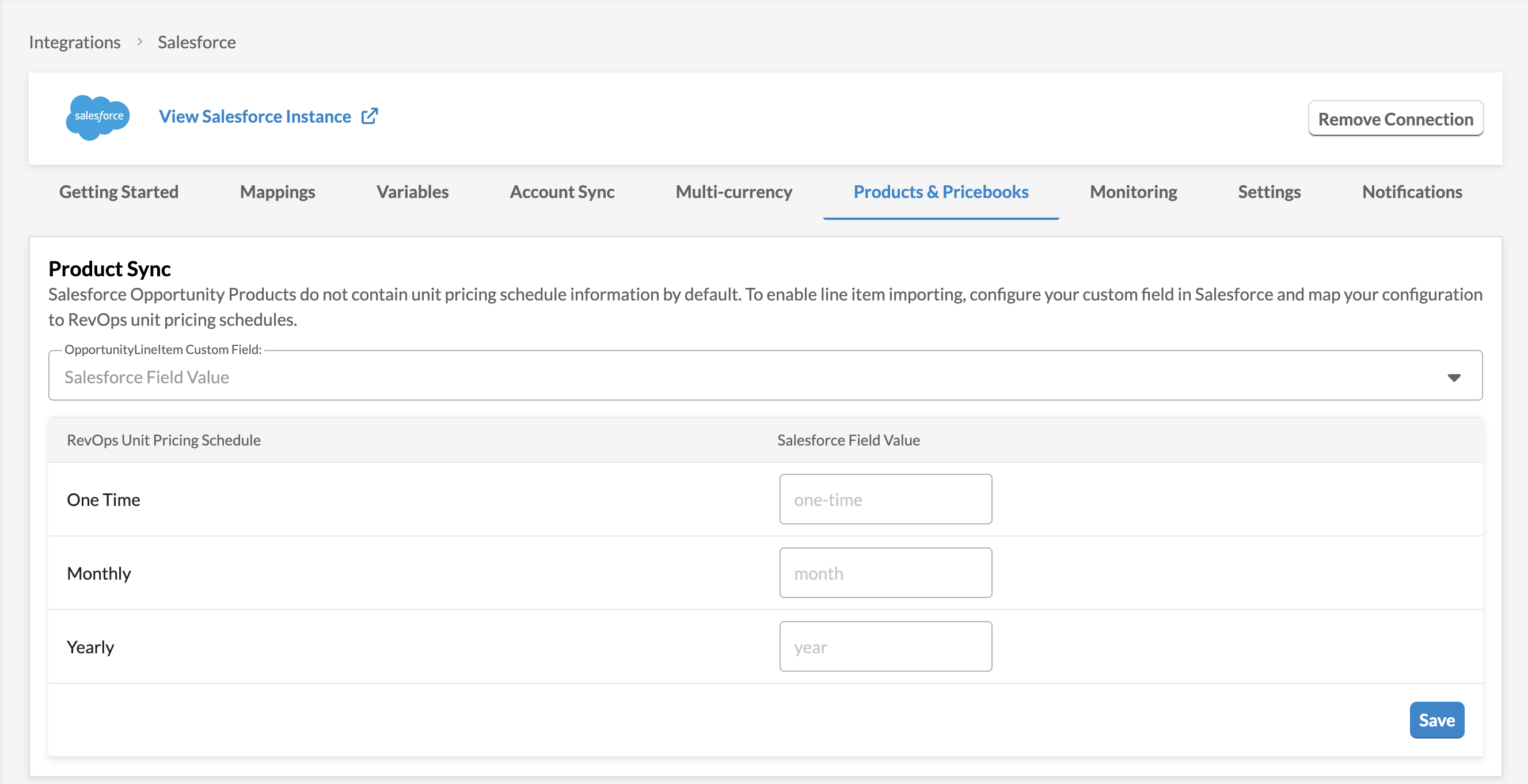
After adding the custom fields in Salesforce, configure your import settings in RevOps. If you go to your Salesforce Integration settings page and don't see a "Products & Pricebooks" tab, you will need to reach out to your account manager or support@revops.io to enable the feature for your Workspace.
-
Go to your Product Sync settings. At the top of the page, you'll see the OpportunityLineItem Custom Field setting.
-
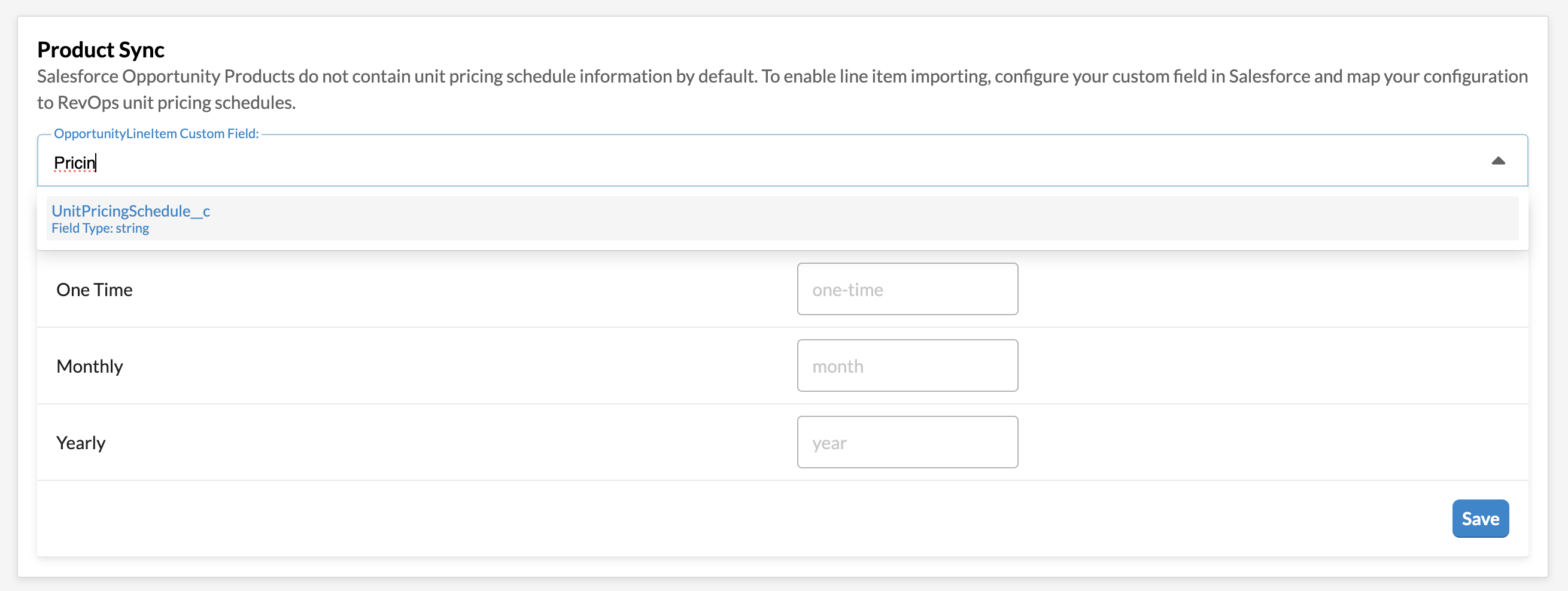
Select the custom field you created for the unit pricing schedule.
-
(Optional) You can customize the values for the pricing schedule. These are the default mappings:
- One-time or non-recurring line items →
one-time - Recurring monthly line items →
month - Recurring yearly line items →
year
We recommend keeping the default values unless you have a specific reason to change them.
- One-time or non-recurring line items →
-
Click Save when you're done.
You're all set
You’ve successfully set up the OpportunityLineItem import from Salesforce.
If you have any questions, suggestions, or feedback, email us at support@revops.io. Thanks for being a part of helping us build a better RevOps platform.