Disconnecting and Uninstalling the HubSpot Integration
You can end the HubSpot integration from either side:
- Disconnect HubSpot from RevOps. This is the recommended way. It removes the connection in RevOps and uninstalls the RevOps app from your HubSpot account in one step.
- Uninstall the RevOps app from HubSpot, if you are working in HubSpot and don't have access to RevOps.
To learn what each option changes in your HubSpot account and in RevOps, see How disconnecting and uninstalling affect your data.
Disconnect HubSpot from RevOps
-
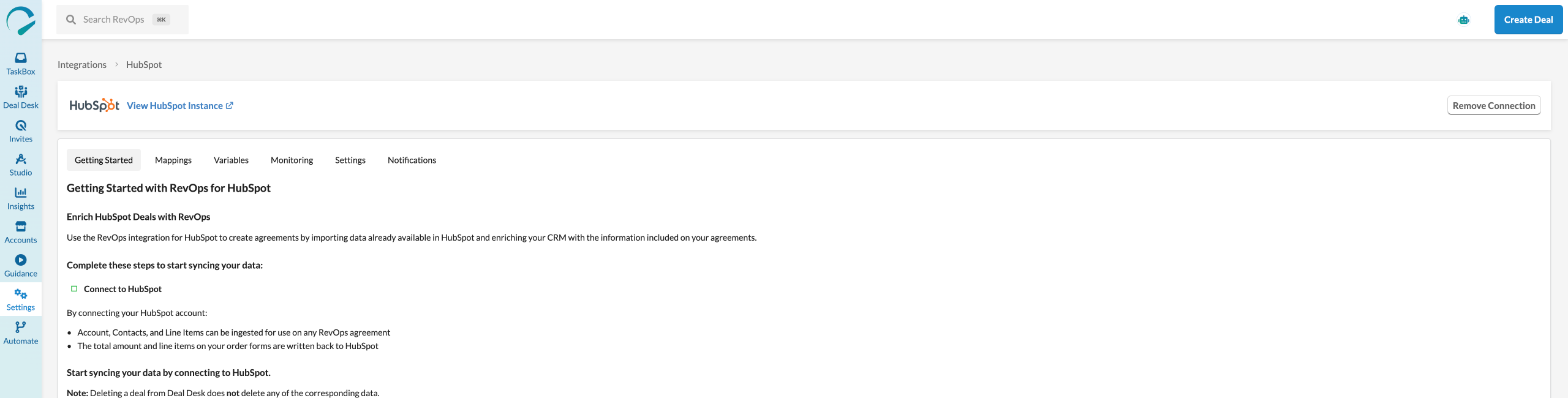
In RevOps, go to Settings > Integrations > HubSpot.
-
Click Remove Connection.
-
In the confirmation dialog, type
ACCEPTand click Remove connection.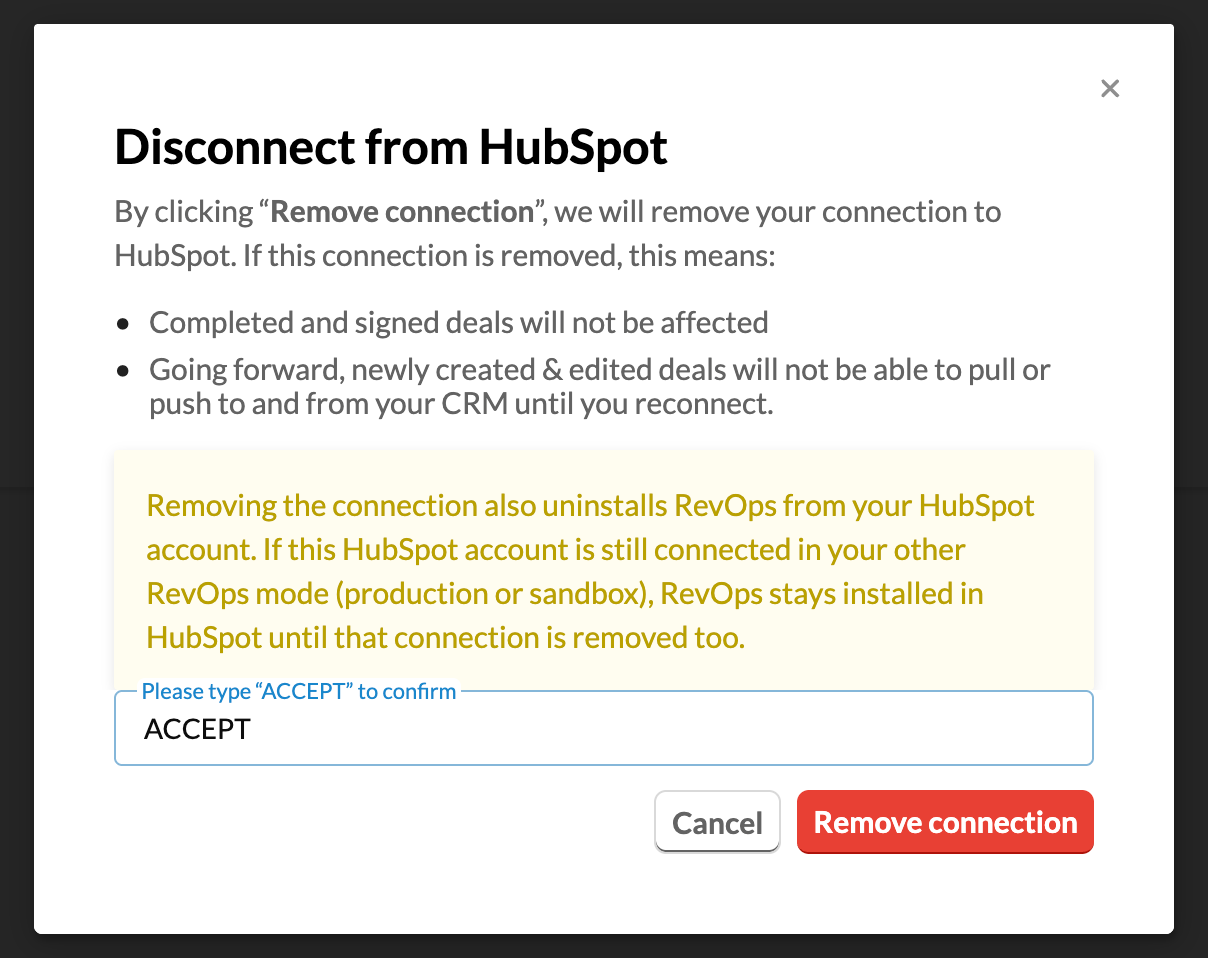
The HubSpot page in RevOps now shows Connect to HubSpot again. RevOps also uninstalls its app from your HubSpot account, and HubSpot emails your account's Super Admins to let them know, with a link to reinstall the app if the uninstall was a mistake.
If the same HubSpot account is connected to both RevOps production mode and sandbox mode, disconnecting one mode leaves the RevOps app installed in HubSpot, because the other mode still uses it. The app is uninstalled when you disconnect the second mode.
Uninstall the RevOps app from HubSpot
Only HubSpot users who can manage apps in your HubSpot account, such as Super Admins, can uninstall the app.
- In HubSpot, click the settings icon in the top navigation bar.
- In the left sidebar, go to Integrations > Connected Apps.
- Find RevOps Deal Desk & CPQ, then click Actions > Uninstall.
- Type
uninstallin the confirmation field and click Uninstall.
For more detail, see HubSpot's guide on uninstalling an app.
After you uninstall the app in HubSpot, RevOps still shows HubSpot as connected, but it can no longer reach your HubSpot account. To finish removing the integration, also disconnect HubSpot from RevOps. The disconnect works even though the app is already uninstalled.